
8 posts tagged with "aws"

View All Tags

Delete Old Lambda Versions Using Serverless Package

· One min read

In my current project, we are using serverless package for one of the modules to deploy around 20 lambda functions. What happened was for each build, a new version of lambda is created and stored. This resulted in reaching the maximum code storage limit of 75GB pretty soon.

Gitlab pipeline started failing. For few weeks, we wrote a script to delete the lambda versions and ran it whenever required. But that was not a permanent solution. So, we tried serverless-prune-plugin.

Setup

Install the serverless-prune-plugin.

yarn add serverless-prune-plugin --dev

Update Serverless Config

Add serverless-prune-plugin to the list of plugins in either serverless.ts or serverless.yml. Mine was a .ts.

plugins: [
'serverless-prune-plugin',
],

Since, I had to run this pruning automatically, I added the rules to custom attribute in serverless.ts.

custom: {
prune: {
automatic: true,
number: 3,
},
},

Output

Now when the pipeline runs, it showed that the pruning was successful.

✔ Pruning of functions complete

In my case 75GB space got reduced to 45GB.

Get Latest and Oldest AWS Lambda Version Numbers Using CLI

· 2 min read

In my current project, we are heavily using AWS Lambda. We had enabled versioning for the Lambdas. What happened was over the time, the versions got piled up and the maximum storage limit of 75GB was exceeded. This resulted in failed pipelines with codestorageexceeded error.

We had to delete all the old versions quickly. In AWS console, we cannot "Select All" and delete the versions. There was around 105 versions and it will take a lot of time to go to each version and delete it manually.

That is when, I thought about writing a shell script using AWS CLI to get the latest and oldest version number and delete each versions in a loop.

Here is the AWS CLI command to get the latest version:

aws lambda list-versions-by-function --function-name <lambda_function_name_here> --query 'Versions[-1].Version' --output text --region <your region>

If we replace the -1 with 1, we get the oldest version.

aws lambda list-versions-by-function --function-name <lambda_function_name_here> --query 'Versions[1].Version' --output text --region <your region>

And, as an additional bonus, here is the aws command to delete a particular version:

aws lambda delete-function --function-name <aws lambda function name> --region <aws region> --qualifier <version number>

SOLVED: AWS Lambda CodeStorageExceededException: Code storage limit exceeded

· 4 min read

Other day, my team mate reported this error in Gitlab pipeline:


│ Error: updating Lambda Function (page-lambda-us-east-1) code: operation error Lambda: UpdateFunctionCode, https response error StatusCode: 400, RequestID: c4b4d69f-91d1-49e5-8934-55dcae38cffa, CodeStorageExceededException: Code storage limit exceeded.

│ with aws_lambda_function.nextjs_lambda,
│ on main.tf line 15, in resource "aws_lambda_function" "nextjs_lambda":
│ 15: resource "aws_lambda_function" "nextjs_lambda" {


From the error message, we can understand that some storage space got full. In this case, it is the storage space of AWS Lambda. AWS lambda stores the function code in an internal S3 bucket that is private to your account. Each AWS account is allocated with 75GB of storage in each region.

Note: The 75GB storage is not for each lambda. It is for all the lambda functions together.

Finding Lambda Storage Capacity in AWS Console

To check if we have exceeded, we logged in to AWS account and selected the correct region. Under AWS Lambda > Dashboard, we can see the storage utilization.
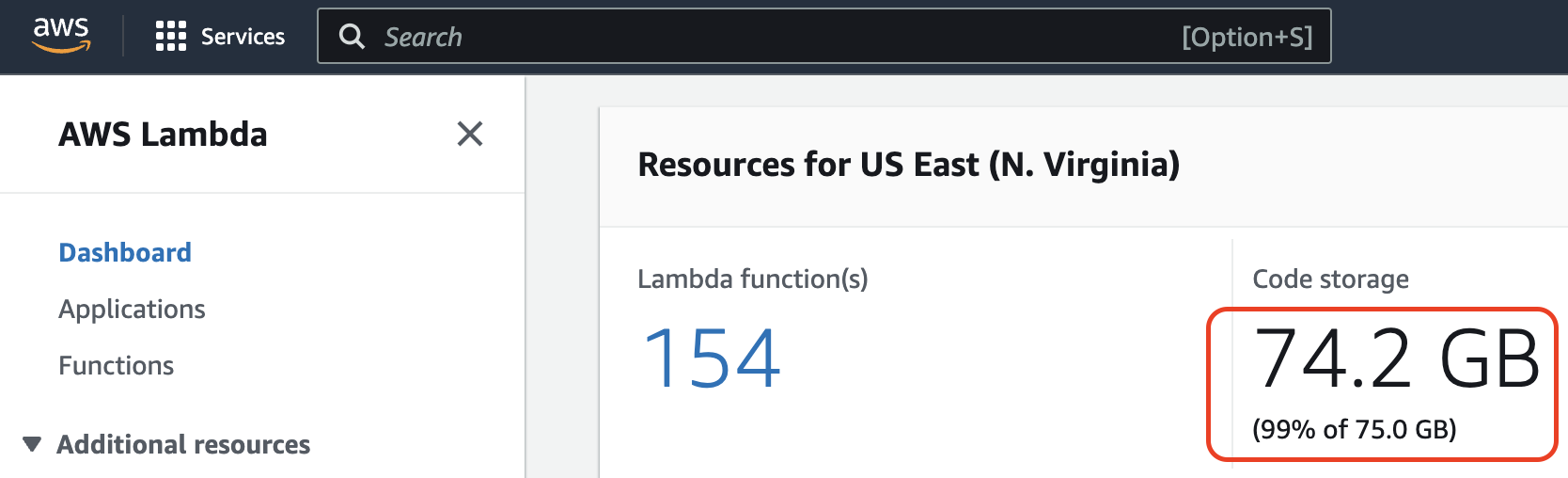
Code Storage Size

It was 75.3GB when we got the error. This screenshot was taken after freeing some space.

Why it happened?

In my case, versioning was enabled for few lambda functions. In each deployment, a new version is formed. This increased the disk space utilization.

Here is a function that has 80+ versions.
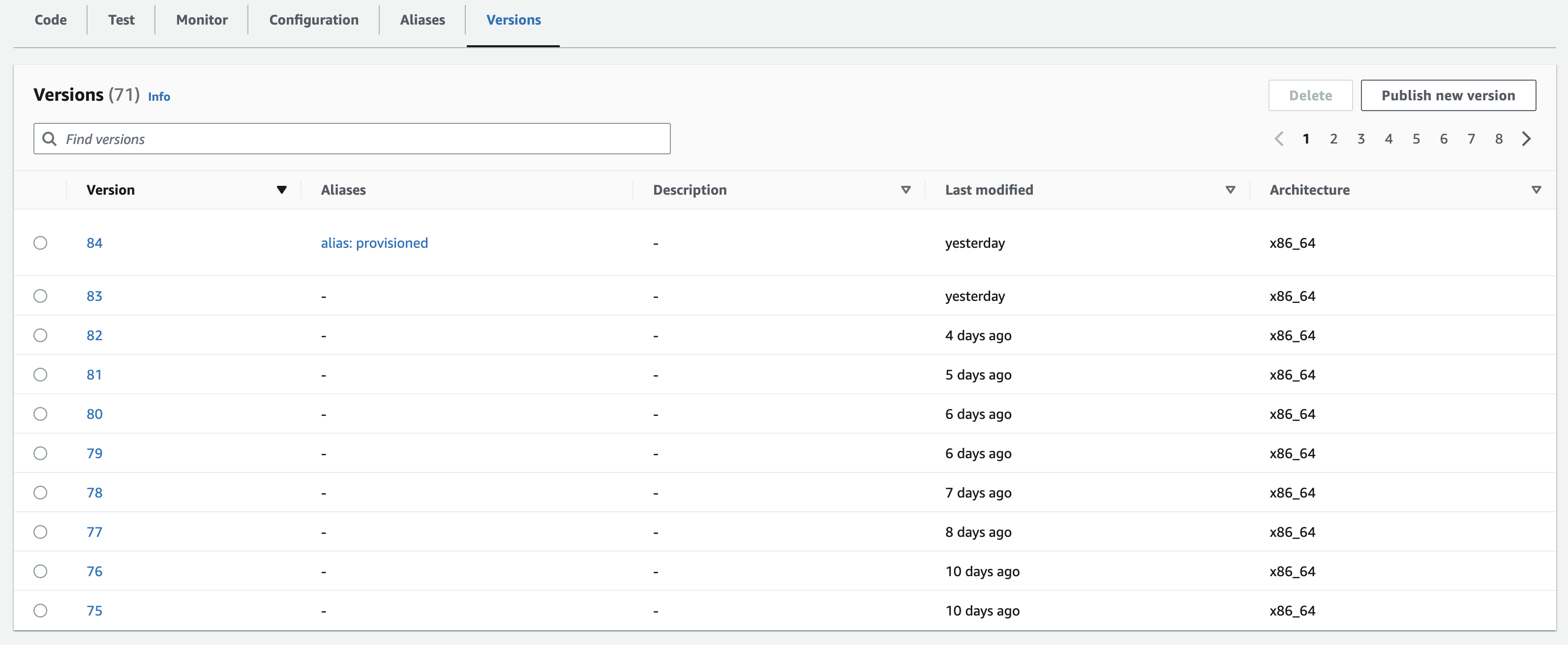
Lambda versions

Ideally, I did not have to keep all these versions. Maximum the last two versions needs to be kept.

Deleting Versions from Console

To free up some space, we can select a version by clicking the radio button and click "Delete" button on top right.

In my case for every 4 versions deleted, I could save 100MB of storage. If your function is big, you can free more space in each deletion.

But I got bored after deleting few versions. This task will take forever.

Deleting Versions using AWS CLI

I searched in Google and found the command to delete a version from command line.

The steps to do that are easy. First, we need to install aws-sdk. That will bring aws command available in our terminal.

Then set AWS client ID and AWS secret.

Then run below command to delete a version:

aws lambda delete-function --function-name <function-name> --region us-east-1 --qualifier <version number>

Eg:

aws lambda delete-function --function-name my-lambda-function --region us-east-1 --qualifier 83

Above command deletes version 83 of my-lambda-function.

This process was faster than console. Still, I had to do it for each version.

Deleting all Older versions of Lambda Function in loop

If I could delete all the older version numbers in a loop, I can save a lot of time.

So, I created a bash script with loop. The boilerplate for the script was taken from ChatGPT.

Here is the bash script that loop from 82 to 1 and delete one version in each iteration.

#!/bin/bash

# Define the loop counter and maximum iterations
counter=82
end=0

# Start the loop
while [ $counter -ge $end ]
do
# Run your AWS CLI command here
aws lambda delete-function --function-name your-function-name --region us-east-1 --qualifier $counter

# Increment the counter
counter=$((counter-1))

# Sleep for a desired interval (optional)
sleep 1
done

I saved the file as lambda.sh. Then I tried to run the file from terminal using ./lambda.sh.

It returned permission denied error. I fixed it using chmod +x lambda.sh command.

Then I retried running lambda.sh.

The terminal was processing the loop for several minutes. After that, I got the terminal prompt back.

I immediately went to AWS console and checked if the older versions got deleted. WOW! all of them are gone!.

Cleaned Lambda versions

Just doing that for one lambda saved 1GB for me. I am happy :)

Next, you can check how can to pass an array of lambda function names and delete all older versions.

Create AWS Lambda Instance Using JavaScript SDK

· One min read

To create an instance of the AWS Lambda service client using the JavaScript AWS SDK, you can use the following code:

const AWS = require("aws-sdk");
const lambda = new AWS.Lambda({
region: "your-aws-region",
accessKeyId: "your-access-key-id",
secretAccessKey: "your-secret-access-key",
});

Here's a brief explanation of what's happening in this code:

  • First, we require the aws-sdk module, which provides us with access to the AWS SDK for JavaScript.
  • Next, we create a new instance of the AWS Lambda service client using the AWS.Lambda constructor function. We pass in an object with the following properties:
    • region: The AWS region in which the Lambda function will be created and executed.
    • accessKeyId: The access key ID for an AWS IAM user with permissions to access the Lambda service. This property is optional if you're using a default credentials provider, such as the AWS SDK's default credential chain.
    • secretAccessKey: The secret access key for the IAM user. This property is also optional if you're using a default credentials provider.

Once you've created an instance of the AWS Lambda service client, you can use it to interact with the Lambda service API and manage Lambda functions in your AWS account.

What is the maximum TTL for AWS API Gateway?

· 3 min read

The maximum Time-to-Live (TTL) value for a cache entry in Amazon API Gateway is 3600 seconds (1 hour). This means that if a client sends a request for a resource that has a valid cache entry in API Gateway, and the cache entry has not expired (i.e., its TTL has not elapsed), API Gateway will return the cached response without forwarding the request to the backend.

However, it's worth noting that the actual TTL value for a cache entry can be influenced by various factors, such as the cache capacity, the cache eviction policy, and the frequency and popularity of requests for the resource. In some cases, API Gateway may also invalidate cache entries before their TTL expires, for example, if the underlying data changes or if a cache flush is triggered.

Can I increase the maximum TTL of Amazon API Gateway?

No, it's not possible to increase the maximum Time-to-Live (TTL) value for a cache entry in Amazon API Gateway beyond the maximum value of 3600 seconds (1 hour). This is a hard limit set by AWS, and it cannot be changed.

However, you can still configure the caching behavior of your API in other ways, such as by adjusting the cache capacity, the cache key settings, the cache eviction policy, and the cache key parameters. By fine-tuning these settings, you may be able to optimize the cache performance of your API and achieve a higher cache hit rate, even with the 1-hour TTL limit.

Keep in mind that caching is just one optimization technique that you can use to improve the performance and scalability of your API. Other techniques, such as request throttling, content compression, and load balancing, may also be useful depending on your use case and workload.

Why Amazon API Gateway has set a hard limit on Max TTL to 3600 seconds?

Amazon API Gateway has set a hard limit on the maximum Time-to-Live (TTL) value for cache entries to 3600 seconds (1 hour) for a few reasons:

  1. Performance: Caching is an effective technique to improve API performance by reducing the load on backend systems and speeding up response times. However, caching also requires storage space and processing power, which can become a bottleneck if cache entries are too large or too long-lived. By setting a reasonable maximum TTL value, AWS can balance the benefits of caching with the cost of cache maintenance and eviction.

  2. Consistency: Cache entries that are too old may become stale or invalid, leading to inconsistent or incorrect responses for clients. By limiting the TTL to a reasonable timeframe, AWS can help ensure that cache entries remain fresh and up-to-date, without relying on manual cache flushing or invalidation.

  3. Cost: AWS charges for API Gateway caching based on the cache capacity, the number of requests, and the cache hit rate. By setting a maximum TTL value, AWS can help customers optimize their cache usage and avoid excessive storage and processing costs, while still providing a valuable caching service.

Overall, the 3600-second TTL limit strikes a balance between cache performance, consistency, and cost, and it has proven to be an effective caching strategy for many API Gateway use cases.

SOLVED: 502 Error The Lambda function returned invalid JSON

· 2 min read

In my current project, we are hosting Next.js in AWS using Next.js Serverless Component. It is an eCommerce website. After integrating few APIs in product listing page, some browse pages started throwing below error when directly accessing the CloudFront url.

502 ERROR
The request could not be satisfied.
The Lambda function returned invalid JSON: The JSON output is not parsable. We can't connect to the server for this app or website at this time. There might be too much traffic or a configuration error. Try again later, or contact the app or website owner.
If you provide content to customers through CloudFront, you can find steps to troubleshoot and help prevent this error by reviewing the CloudFront documentation.

Initially we thought something was breaking from the backend and the API response was corrupted. But after reading through AWS documentation and understanding the working of Next.js Serverless component to an extend, this is what we found.

Next.js Serverless component is creating AWS Lambda function to run server side code. For improved performance, the Lambda functions are copied to Lambda@Edge and executed from there.

If a Next.js page contains getServerSideProps(), there is a server side execution. This server side execution happens at Lambda@Edge. Lambda@Edge then returns the response from getServerSideProps() to CloudFront . This response has a size limit of 1MB set by AWS. So if our response is greater than 1MB, Lamba@Edge truncates it and pass to CloudFront. Truncation makes the response invalid. When CloudFront tries to parse the invalid response JSON, this error is thrown.

We reduced the size of JSON object by optimizing the returned data from getServerSideProps() function and solved the issue.