
3 posts tagged with "authentication"

View All Tags

Google Social Login in Headless Shopify Using Better-Auth and Next.js

· 11 min read

Social login has become a standard feature in modern e-commerce applications, offering users a convenient way to sign in without creating new credentials. In this article, we'll explore how to implement Google Social Login in a headless Shopify storefront using Better-Auth and Shopify Multipass.

Note: The live demo site uses a Shopify Partner development store which doesn't support Multipass (Multipass is only available on Shopify Plus plans). However, the complete working implementation of Google social login is available in the GitHub repository. You can refer to the codebase for a fully functional example.

What is Shopify Multipass?

Shopify Multipass is a feature available on Shopify Plus that allows you to authenticate customers from an external identity provider. When a user signs in through a third-party service (like Google), you generate a Multipass token that Shopify uses to create or sign in the customer automatically.

How Multipass Works

  1. User authenticates with Google (or another OAuth provider)
  2. Your application receives the user's email from Google
  3. You generate a Multipass token using the user's email
  4. Exchange the Multipass token with Shopify for a customer access token
  5. Store the customer access token in a secure cookie for subsequent requests

Prerequisites

Before implementing Google social login, ensure you have:

  1. Better-Auth Setup: Basic Better-Auth configuration in your Next.js application
  2. Shopify Plus Account: Multipass is only available on Shopify Plus plans
  3. Multipass Enabled: Enable Multipass in your Shopify admin settings and obtain the secret key
  4. Google OAuth Credentials: Google Cloud project with OAuth 2.0 credentials configured

If you haven't set up basic Better-Auth authentication yet, check out the article on implementing authentication in headless Shopify.

Step 1: Configure Environment Variables

Add the required environment variables for Google OAuth and Shopify Multipass:

# .env
BETTER_AUTH_URL=http://localhost:3000
BETTER_AUTH_SECRET=your_better_auth_secret

# Google OAuth
GOOGLE_CLIENT_ID=your_google_client_id
GOOGLE_CLIENT_SECRET=your_google_client_secret

# Shopify Multipass
SHOPIFY_MULTIPASS_SECRET=your_shopify_multipass_secret

Getting Google OAuth Credentials

  1. Go to Google Cloud Console
  2. Create a new project or select an existing one
  3. Navigate to APIs & Services > Credentials
  4. Click Create Credentials > OAuth client ID
  5. Configure the OAuth consent screen
  6. Set the application type to Web application
  7. Add authorized redirect URIs:
    • http://localhost:3000/api/auth/callback/google (for development)
    • https://yourdomain.com/api/auth/callback/google (for production)

Getting Shopify Multipass Secret

  1. Log in to your Shopify admin
  2. Navigate to Settings > Customer accounts
  3. Enable Multipass (requires Shopify Plus)
  4. Copy the Multipass secret key

Step 2: Configure Better-Auth with Google Provider

Update your Better-Auth configuration to include the Google social provider:

// src/lib/auth.ts
import { betterAuth } from "better-auth";
import { nextCookies } from "better-auth/next-js";
import { shopifyAuthPlugin } from "@/lib/shopify-auth-plugin";

export const auth = betterAuth({
baseURL: process.env.BETTER_AUTH_URL,
plugins: [nextCookies(), shopifyAuthPlugin()],
// 👇 Google OAuth configuration
socialProviders: {
google: {
clientId: process.env.GOOGLE_CLIENT_ID as string,
clientSecret: process.env.GOOGLE_CLIENT_SECRET as string,
},
},
// 👆 Add your Google credentials here
});

This configuration:

  • Enables the Google OAuth provider
  • Uses nextCookies() for cookie management in Next.js
  • Includes the custom shopifyAuthPlugin for Shopify-specific auth flows
Important Configuration

The socialProviders.google object is where you configure Google OAuth. Make sure to add your Google Client ID and Client Secret from the Google Cloud Console.

Step 3: Create the Multipass Token Generator

Create a utility function to generate Multipass tokens:

// src/lib/shopify/multipass.ts
import Multipassify from "multipassify";

export const SHOPIFY_MULTIPASS_SECRET = process.env.SHOPIFY_MULTIPASS_SECRET;

export function generateMultipassToken(email: string): string {
if (!SHOPIFY_MULTIPASS_SECRET) {
throw new Error("SHOPIFY_MULTIPASS_SECRET is not configured.");
}

const multipassify = new Multipassify(SHOPIFY_MULTIPASS_SECRET);

return multipassify.encode({ email });
}

Install the multipassify package:

pnpm add multipassify
# or
npm install multipassify

Step 4: Create the Multipass Integration

Create a GraphQL mutation to exchange the Multipass token for a Shopify customer access token:

# src/integrations/shopify/customer-access-token-create-with-multipass/
# customer-access-token-create-with-multipass.shopify.graphql

mutation customerAccessTokenCreateWithMultipass($multipassToken: String!) {
customerAccessTokenCreateWithMultipass(multipassToken: $multipassToken) {
customerAccessToken {
accessToken
expiresAt
}
customerUserErrors {
message
field
}
}
}

Create the integration function:

// src/integrations/shopify/customer-access-token-create-with-multipass/index.ts
import {
CustomerAccessTokenCreateWithMultipassDocument,
CustomerAccessTokenCreateWithMultipassMutation,
CustomerAccessTokenCreateWithMultipassMutationVariables,
} from "@/generated/shopifySchemaTypes";
import createApolloClient from "@/integrations/shopify/shopify-apollo-client";

export const customerAccessTokenCreateWithMultipass = async (
multipassToken: string,
): Promise<CustomerAccessTokenCreateWithMultipassMutation | undefined> => {
try {
const client = createApolloClient();
const { data } = await client.mutate<
CustomerAccessTokenCreateWithMultipassMutation,
CustomerAccessTokenCreateWithMultipassMutationVariables
>({
mutation: CustomerAccessTokenCreateWithMultipassDocument,
variables: { multipassToken },
});

if (!data) {
throw new Error(
"No data returned from customerAccessTokenCreateWithMultipass mutation",
);
}

return data;
} catch (error) {
console.error(
"Error creating customer access token with multipass:",
error,
);
}
};

Step 5: Create the Multipass API Endpoint

Create a Next.js API route that handles the Multipass authentication flow:

// src/app/api/shopify/multipass/route.ts
import { NextResponse } from "next/server";
import { z } from "zod";

import { customerAccessTokenCreateWithMultipass } from "@/integrations/shopify/customer-access-token-create-with-multipass";
import { generateMultipassToken } from "@/lib/shopify/multipass";

const requestSchema = z.object({
email: z.string(),
});

export async function POST(request: Request) {
const parsed = requestSchema.safeParse(
await request.json().catch(() => ({})),
);

if (!parsed.success) {
return NextResponse.json(
{ error: "Invalid request body." },
{ status: 400 },
);
}

const { email } = parsed.data;

let multipassToken: string;

try {
multipassToken = generateMultipassToken(email);
} catch (error) {
console.error("Error generating multipass token:", error);
return NextResponse.json(
{ error: "Multipass is not configured." },
{ status: 500 },
);
}

try {
const result = await customerAccessTokenCreateWithMultipass(multipassToken);
const payload = result?.customerAccessTokenCreateWithMultipass;
const userErrors = payload?.customerUserErrors ?? [];
const token = payload?.customerAccessToken?.accessToken;
const expiresAt = payload?.customerAccessToken?.expiresAt;

if (userErrors.length || !token) {
return NextResponse.json(
{ error: userErrors[0]?.message || "Unable to create access token." },
{ status: 401 },
);
}

const response = NextResponse.json({ accessToken: token, expiresAt });

response.cookies.set("shopifyCustomerAccessToken", token, {
httpOnly: true,
secure: process.env.NODE_ENV === "production",
sameSite: "lax",
path: "/",
expires: expiresAt ? new Date(expiresAt) : undefined,
});

return response;
} catch (error) {
console.error("Error creating access token with multipass:", error);
return NextResponse.json(
{ error: "Unable to create access token." },
{ status: 500 },
);
}
}

This endpoint:

  1. Receives the user's email from the client
  2. Generates a Multipass token
  3. Exchanges it for a Shopify customer access token
  4. Stores the token in an HTTP-only cookie
  5. Returns the token and expiration to the client

Step 6: Create the Login Page with Google Sign-In

Now create the login page that integrates Google OAuth:

// src/app/account/login/page.tsx
"use client";

import React, { useCallback, useEffect, useState } from "react";
import Link from "next/link";
import { authClient } from "@/lib/auth-client";
import Cookies from "js-cookie";

export default function LoginPage() {
const { data: session } = authClient.useSession();
const [loading, setLoading] = useState(false);
const [googleLoading, setGoogleLoading] = useState(false);
const [processedSocialEmail, setProcessedSocialEmail] = useState<
string | null
>(null);
const [error, setError] = useState<string | null>(null);

const updateCartBuyerIdentity = useCallback(async () => {
const cartId = Cookies.get("cart_id");
if (!cartId) {
return;
}

await fetch("/api/shopify/cart-buyer-identity", {
method: "POST",
headers: {
"Content-Type": "application/json",
},
body: JSON.stringify({ cartId }),
});
}, []);

useEffect(() => {
const socialEmail = session?.user?.email;

if (!socialEmail || socialEmail === processedSocialEmail) {
return;
}

let cancelled = false;

async function authenticateSocialUserWithMultipass() {
setGoogleLoading(true);
setError(null);

try {
const response = await fetch("/api/shopify/multipass", {
method: "POST",
headers: {
"Content-Type": "application/json",
},
body: JSON.stringify({ email: socialEmail }),
});

const payload = (await response.json().catch(() => ({}))) as {
error?: string;
};

if (!response.ok) {
throw new Error(payload.error || "Unable to sign in with Google.");
}

if (cancelled) {
return;
}

setProcessedSocialEmail(socialEmail);
await updateCartBuyerIdentity();
window.location.href = "/";
} catch (err) {
if (cancelled) {
return;
}

setError(
err instanceof Error ? err.message : "Unable to sign in with Google.",
);
} finally {
if (!cancelled) {
setGoogleLoading(false);
}
}
}

authenticateSocialUserWithMultipass();

return () => {
cancelled = true;
};
}, [processedSocialEmail, session?.user?.email, updateCartBuyerIdentity]);

async function onGoogleSignIn() {
setError(null);
setGoogleLoading(true);

try {
const socialSignInResult = await authClient.signIn.social({
provider: "google",
callbackURL: "/account/login",
});

const socialSignInError = (
socialSignInResult as { error?: { message?: string } }
)?.error?.message;

if (socialSignInError) {
setError(socialSignInError || "Unable to start Google sign in.");
}
} catch {
setError("Unable to start Google sign in.");
} finally {
setGoogleLoading(false);
}
}

async function onSubmit(e: React.FormEvent<HTMLFormElement>) {
e.preventDefault();
setError(null);
setLoading(true);

const form = e.currentTarget;
const email = (form.elements.namedItem("email") as HTMLInputElement).value;
const password = (form.elements.namedItem("password") as HTMLInputElement)
.value;

try {
const shopifyAuth = await authClient.shopifySignIn({
email,
password,
});

const shopifyError = (shopifyAuth as { error?: { message?: string } })
?.error?.message;
if (shopifyError) {
setError(shopifyError || "Invalid email or password.");
return;
}

const shopifyData = (shopifyAuth as { data?: { ok?: boolean } })?.data;
if (!shopifyData?.ok) {
setError("Invalid email or password.");
return;
}

await updateCartBuyerIdentity();

window.location.href = "/";
} catch {
setError("Unable to sign in. Please try again.");
} finally {
setLoading(false);
}
}

return (
<div className="border-box px-5 py-8 lg:px-10 min-h-[60vh] flex items-center justify-center">
<div className="w-full max-w-md">
<h1 className="text-2xl font-semibold text-gray-900 text-center mb-8 ">
Login
</h1>
<form className="flex flex-col gap-4" onSubmit={onSubmit}>
<div className="flex flex-col gap-2">
<label htmlFor="email" className="text-gray-900">
Email
</label>
<input
type="email"
id="email"
name="email"
className="border border-gray-200 px-4 py-2 text-gray-900 focus:outline-none focus:border-gray-400"
placeholder="you@example.com"
required
/>
</div>
<div className="flex flex-col gap-2">
<label htmlFor="password" className="text-gray-900">
Password
</label>
<input
type="password"
id="password"
name="password"
className="border border-gray-200 px-4 py-2 text-gray-900 focus:outline-none focus:border-gray-400"
placeholder="••••••••"
required
/>
</div>

{error && (
<p className="text-sm text-red-600" role="alert">
{error}
</p>
)}

<button
type="submit"
disabled={loading || googleLoading}
className="mt-4 bg-gray-900 text-white py-3 px-4 hover:bg-gray-800 transition-colors cursor-pointer uppercase disabled:opacity-60"
>
{loading ? "Signing In..." : "Sign In"}
</button>

<button
type="button"
onClick={onGoogleSignIn}
disabled={loading || googleLoading}
className="border border-gray-900 text-gray-900 py-3 px-4 hover:bg-gray-100 transition-colors cursor-pointer uppercase disabled:opacity-60"
>
{googleLoading
? "Signing In With Google..."
: "Sign In with Google"}
</button>
</form>
<div className="mt-6 flex flex-col items-center gap-4">
<Link
href="/account/forgot-password"
className="text-gray-600 hover:text-gray-900 font-light"
>
Forgot your password?
</Link>
<p className="text-gray-500 font-light">
Don&apos;t have an account?{" "}
<Link
href="/account/register"
className="text-gray-600 hover:text-gray-900 font-light"
>
Create one
</Link>
</p>
</div>
</div>
</div>
);
}

Key Implementation Details

  1. Session Monitoring: The useEffect hook watches for Better-Auth session changes after Google OAuth callback
  2. Multipass Authentication: When a Google email is detected, it triggers the Multipass flow
  3. Cart Association: After successful authentication, the cart is associated with the logged-in customer
  4. Error Handling: Comprehensive error handling for both OAuth and Multipass flows
  5. Duplicate Prevention: The processedSocialEmail state prevents duplicate Multipass calls

Step 7: Create a Session Provider (Optional)

Create a session provider to manage user state across your application:

// src/providers/session-provider.tsx
"use client";

import {
createContext,
useCallback,
useContext,
useEffect,
useState,
} from "react";
import { getCurrentUser } from "@/lib/shopify/getCurrentUser";

type SessionUser = Awaited<ReturnType<typeof getCurrentUser>>;

type SessionContextValue = {
user: SessionUser;
loading: boolean;
error: string | null;
refresh: () => Promise<void>;
};

const SessionContext = createContext<SessionContextValue | undefined>(
undefined,
);

export function SessionProvider({ children }: { children: React.ReactNode }) {
const [user, setUser] = useState<SessionUser>(null);
const [loading, setLoading] = useState(true);
const [error, setError] = useState<string | null>(null);

const refresh = useCallback(async () => {
try {
setLoading(true);
setError(null);
const currentUser = await getCurrentUser();
setUser(currentUser);
} catch (err) {
setError(err instanceof Error ? err.message : "Failed to load user");
setUser(null);
} finally {
setLoading(false);
}
}, []);

useEffect(() => {
refresh();
}, [refresh]);

return (
<SessionContext.Provider value={{ user, loading, error, refresh }}>
{children}
</SessionContext.Provider>
);
}

export function useSession() {
const context = useContext(SessionContext);
if (!context) {
throw new Error("useSession must be used within a SessionProvider");
}
return context;
}

Create the getCurrentUser utility:

// src/lib/shopify/getCurrentUser.ts
export const getCurrentUser = async () => {
try {
const response = await fetch("/api/shopify/customer", {
credentials: "include",
headers: {
"Content-Type": "application/json",
},
});

if (!response.ok) {
if (response.status === 401) {
return null;
}
return null;
}

const data = await response.json();
const customer = data?.customer ?? null;

if (!customer) {
return null;
}

const name = [customer.firstName, customer.lastName]
.filter(Boolean)
.join(" ")
.trim();

return {
...customer,
name: name || undefined,
};
} catch {
return null;
}
};

Understanding the Flow

Let's break down what happens when a user clicks "Sign In with Google":

Step 1: OAuth Initiation

authClient.signIn.social({
provider: "google",
callbackURL: "/account/login",
});
  • User is redirected to Google's OAuth consent screen
  • User grants permission
  • Google redirects back to /account/login with auth tokens

Step 2: Better-Auth Session Creation

  • Better-Auth processes the OAuth callback automatically
  • Creates a session with user information (email, name, etc.)
  • The authClient.useSession() hook detects the new session

Step 3: Multipass Token Generation

const multipassToken = generateMultipassToken(email);
  • Extract email from Better-Auth session
  • Generate encrypted Multipass token using Shopify secret

Step 4: Shopify Customer Access Token

customerAccessTokenCreateWithMultipass(multipassToken);
  • Send Multipass token to Shopify
  • Shopify validates and returns customer access token
  • If customer doesn't exist, Shopify creates one automatically
response.cookies.set("shopifyCustomerAccessToken", token, {
httpOnly: true,
secure: process.env.NODE_ENV === "production",
sameSite: "lax",
path: "/",
});
  • Store Shopify customer token in HTTP-only cookie
  • Token is automatically included in subsequent requests

Conclusion

Implementing Google social login in a headless Shopify storefront requires coordinating several technologies:

  1. Better-Auth: Handles OAuth flow and session management
  2. Shopify Multipass: Bridges external authentication with Shopify customers
  3. Next.js API Routes: Orchestrates the authentication flow
  4. Secure Cookies: Stores authentication tokens safely

This architecture provides a secure, user-friendly authentication experience while maintaining compatibility with Shopify's customer system. The approach can be extended to other OAuth providers (GitHub, Facebook, etc.) using the same Multipass integration pattern.
Additional Resources

Implementing Forgot Password and Reset Password in Headless Shopify

· 11 min read

Password recovery is an essential feature for any e-commerce application. When users forget their passwords, they need a secure and straightforward way to reset them. In this article, we'll implement a complete forgot password and reset password flow for a headless Shopify storefront using Better-Auth and Next.js.

Live Demo: https://headless-shopify-site.vercel.app/

Prerequisites

This article builds upon the authentication system covered in Authentication in Headless Shopify Using Better-Auth and Next.js. Make sure you have:

  1. ✅ Next.js application with Better-Auth configured
  2. ✅ Shopify Customer API integration
  3. ✅ Custom Shopify auth plugin implemented
  4. ✅ Sign-in and sign-up functionality working

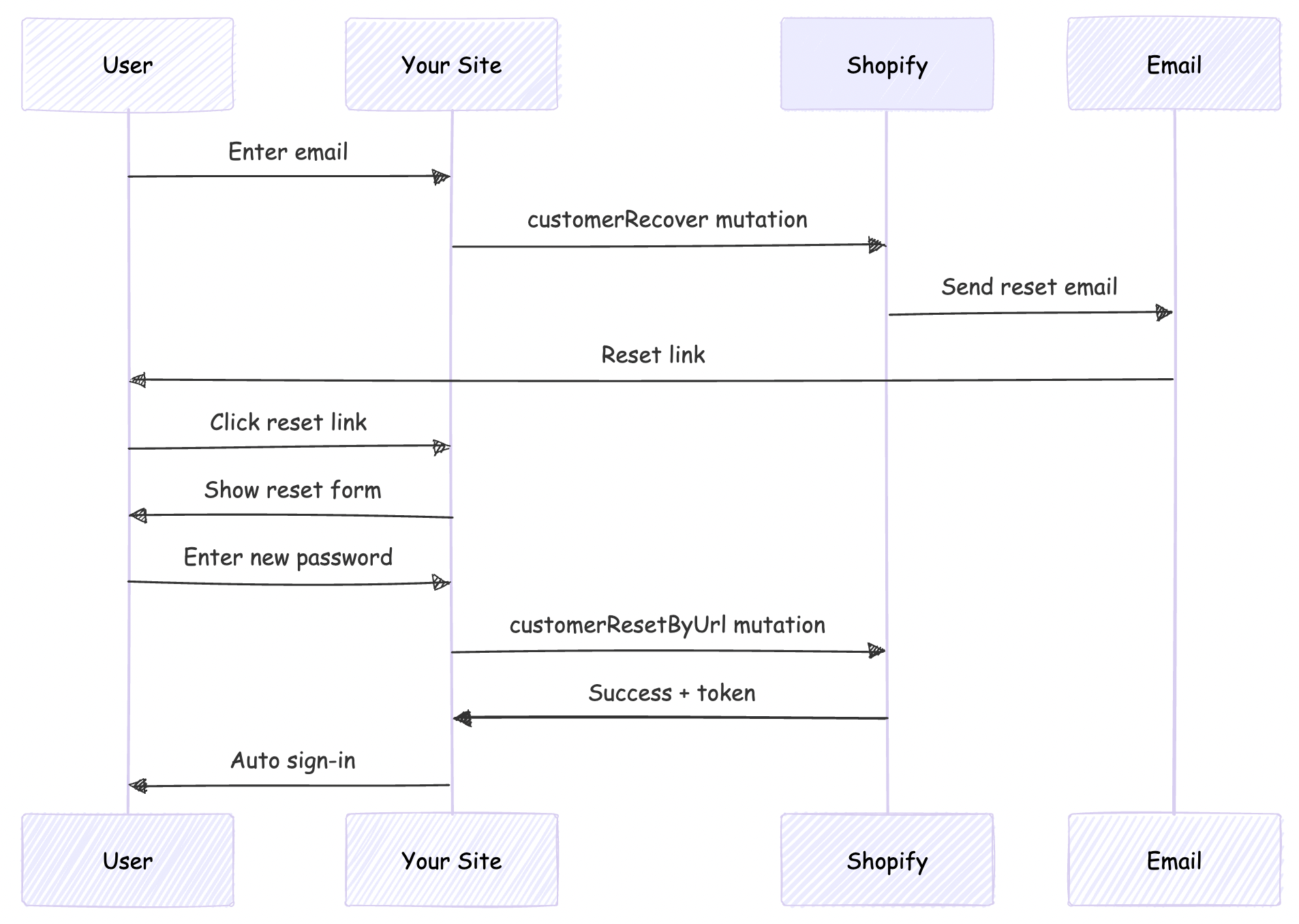
Understanding Shopify's Password Recovery Flow

Shopify provides two mutations for password recovery:

  1. customerRecover: Sends a password reset email to the customer
  2. customerResetByUrl: Resets the password using the URL from the email

The flow works like this:

Password Reset Flow

Reset Password Email URL

This scenario is applicable only if your headless site domain is different from that given as primary domain in Shopify

By default, Shopify's password reset emails point to the Shopify-hosted store (your-store.myshopify.com). For a headless storefront, we need these emails to point to your custom domain instead.

We'll solve this by:

  1. Customizing Shopify's email templates (discussed later in this post)
  2. Implementing a reset password page on our site
  3. Handling the reset flow with Better-Auth

Step 1: Create the Forgot Password GraphQL Mutation

First, create the GraphQL mutation file for customerRecover:

# src/integrations/shopify/customer-recover/customer-recover.shopify.graphql
mutation customerRecover($email: String!) {
customerRecover(email: $email) {
customerUserErrors {
message
field
}
}
}

This mutation triggers Shopify to send a password reset email to the customer.

Step 2: Create the Integration Function

Create the TypeScript integration function:

// src/integrations/shopify/customer-recover/index.ts
import {
CustomerRecoverDocument,
CustomerRecoverMutation,
CustomerRecoverMutationVariables,
} from "@/generated/shopifySchemaTypes";
import createApolloClient from "@/integrations/shopify/shopify-apollo-client";

export const customerRecover = async (
email: string,
): Promise<CustomerRecoverMutation | undefined> => {
try {
const client = createApolloClient();
const { data } = await client.mutate<
CustomerRecoverMutation,
CustomerRecoverMutationVariables
>({
mutation: CustomerRecoverDocument,
variables: { email },
});

if (!data) {
throw new Error("No data returned from customerRecover mutation");
}

return data;
} catch (error) {
console.error("Error sending password reset email:", error);
}
};

Note: Run your GraphQL codegen after creating the mutation file:

npm run codegen

Step 3: Add Forgot Password to Better-Auth Plugin

Update your Shopify auth plugin to include the forgot password endpoint:

Add Types

// src/lib/shopify-auth-plugin.ts
export type ShopifyForgotPasswordInput = {
email: string;
};

Add Validation Schema

import * as z from "zod";

const forgotPasswordSchema = z.object({
email: z.email().min(1),
});

Create the Endpoint

import { customerRecover } from "@/integrations/shopify/customer-recover";

export const shopifyAuthPlugin = () => {
return {
id: "shopify-auth",
endpoints: {
// ... existing signIn and signUp endpoints

forgotPassword: createAuthEndpoint(
"/shopify-auth/forgot-password",
{
method: "POST",
body: forgotPasswordSchema,
},
async (ctx) => {
const { email } = ctx.body;

const result = await customerRecover(email);

if (!result) {
throw new APIError("BAD_REQUEST", {
message: "Unable to send password reset email.",
});
}

const payload = result.customerRecover;
const userErrors = payload?.customerUserErrors ?? [];

if (userErrors.length) {
throw new APIError("BAD_REQUEST", {
message:
userErrors[0]?.message ||
"Unable to send password reset email.",
});
}

return ctx.json({ ok: true });
},
),
},
} satisfies BetterAuthPlugin;
};

Step 4: Add Client-Side Action

Update your auth client plugin to expose the forgot password action:

// src/lib/shopify-auth-client.ts
import type {
ShopifyForgotPasswordInput,
} from "@/lib/shopify-auth-plugin";

export const shopifyAuthClientPlugin = () => {
return {
id: "shopify-auth",
$InferServerPlugin: {} as ReturnType<typeof shopifyAuthPlugin>,
getActions: ($fetch) => {
return {
// ... existing shopifySignIn and shopifySignUp

shopifyForgotPassword: async (
data: ShopifyForgotPasswordInput,
fetchOptions?: BetterFetchOption,
) => {
return $fetch("/shopify-auth/forgot-password", {
method: "POST",
body: data,
...fetchOptions,
});
},
};
},
} satisfies BetterAuthClientPlugin;
};

Step 5: Create the Forgot Password Page

Create a user-friendly forgot password page:

// src/app/account/forgot-password/page.tsx
"use client";

import React, { useState } from "react";
import Link from "next/link";
import { authClient } from "@/lib/auth-client";

export default function ForgotPasswordPage() {
const [loading, setLoading] = useState(false);
const [error, setError] = useState<string | null>(null);
const [success, setSuccess] = useState(false);

async function onSubmit(e: React.FormEvent<HTMLFormElement>) {
e.preventDefault();
setError(null);
setSuccess(false);
setLoading(true);

const form = e.currentTarget;
const email = (form.elements.namedItem("email") as HTMLInputElement).value;

try {
const result = await authClient.shopifyForgotPassword({ email });

const shopifyError = (result as { error?: { message?: string } })?.error
?.message;
if (shopifyError) {
setError(shopifyError || "Unable to send password reset email.");
return;
}

const shopifyData = (result as { data?: { ok?: boolean } })?.data;
if (!shopifyData?.ok) {
setError("Unable to send password reset email.");
return;
}

setSuccess(true);
} catch {
setError("Unable to send password reset email. Please try again.");
} finally {
setLoading(false);
}
}

return (
<div className="border-box px-5 py-8 lg:px-10 min-h-[60vh] flex items-center justify-center">
<div className="w-full max-w-md">
<h1 className="text-2xl font-semibold text-gray-900 text-center mb-4">
Forgot Password
</h1>
<p className="text-gray-500 text-center mb-8 font-light">
Enter your email address and we'll send you a link to reset your
password.
</p>

{success ? (
<div className="bg-green-50 border border-green-200 text-green-800 px-4 py-3 rounded">
<p className="text-sm">
If an account exists with this email, you will receive a password
reset link shortly.
</p>
</div>
) : (
<form className="flex flex-col gap-4" onSubmit={onSubmit}>
<div className="flex flex-col gap-2">
<label htmlFor="email" className="text-gray-900">
Email
</label>
<input
type="email"
id="email"
name="email"
className="border border-gray-200 px-4 py-2 text-gray-900 focus:outline-none focus:border-gray-400"
placeholder="you@example.com"
required
/>
</div>

{error && (
<p className="text-sm text-red-600" role="alert">
{error}
</p>
)}

<button
type="submit"
disabled={loading}
className="mt-4 bg-gray-900 text-white py-3 px-4 hover:bg-gray-800 transition-colors cursor-pointer uppercase disabled:opacity-50 disabled:cursor-not-allowed"
>
{loading ? "Sending..." : "Send Reset Link"}
</button>
</form>
)}

<div className="mt-6 flex flex-col items-center gap-4">
<Link
href="/account/login"
className="text-gray-600 hover:text-gray-900 font-light"
>
Back to Login
</Link>
</div>
</div>
</div>
);
}

Step 6: Customize Shopify Email Template

This is the crucial step that redirects users to your site instead of Shopify's hosted store.

Access Email Templates

  1. Go to your Shopify Admin
  2. Navigate to SettingsNotifications
  3. Find Customer account password reset
  4. Click to edit the template

Update the Reset URL

Find the line containing the reset password link (typically):

{{ customer.reset_password_url }}

Replace it with:

https://your-vercel-domain.com/account/reset-password?url={{ customer.reset_password_url | url_encode }}

Example:

<!-- Before -->
<a href="{{ customer.reset_password_url }}">Reset your password</a>

<!-- After -->
<a href="https://headless-shopify-site.vercel.app/account/reset-password?url={{ customer.reset_password_url | url_encode }}">Reset your password</a>

Replace headless-shopify-site.vercel.app with your actual domain.

Step 7: Implement Password Reset Functionality

Now implement the actual password reset page that users land on after clicking the email link.

Create the GraphQL Mutation

# src/integrations/shopify/customer-reset-by-url/customer-reset-by-url.shopify.graphql
mutation customerResetByUrl($password: String!, $resetUrl: URL!) {
customerResetByUrl(password: $password, resetUrl: $resetUrl) {
customer {
id
email
firstName
lastName
}
customerAccessToken {
accessToken
expiresAt
}
customerUserErrors {
message
field
}
}
}

Create the Integration Function

// src/integrations/shopify/customer-reset-by-url/index.ts
import {
CustomerResetByUrlDocument,
CustomerResetByUrlMutation,
CustomerResetByUrlMutationVariables,
} from "@/generated/shopifySchemaTypes";
import createApolloClient from "@/integrations/shopify/shopify-apollo-client";

export const customerResetByUrl = async (
password: string,
resetUrl: string,
): Promise<CustomerResetByUrlMutation | undefined> => {
try {
const client = createApolloClient();
const { data } = await client.mutate<
CustomerResetByUrlMutation,
CustomerResetByUrlMutationVariables
>({
mutation: CustomerResetByUrlDocument,
variables: { password, resetUrl },
});

if (!data) {
throw new Error("No data returned from customerResetByUrl mutation");
}

return data;
} catch (error) {
console.error("Error resetting password:", error);
}
};

Run codegen again:

npm run codegen

Step 8: Add Reset Password to Auth Plugin

Add Types

// src/lib/shopify-auth-plugin.ts
export type ShopifyResetPasswordInput = {
password: string;
resetUrl: string;
};

Add Validation Schema

const resetPasswordSchema = z.object({
password: z.string().min(5),
resetUrl: z.string().url(),
});

Create the Endpoint

import { customerResetByUrl } from "@/integrations/shopify/customer-reset-by-url";

export const shopifyAuthPlugin = () => {
return {
id: "shopify-auth",
endpoints: {
// ... existing endpoints

resetPassword: createAuthEndpoint(
"/shopify-auth/reset-password",
{
method: "POST",
body: resetPasswordSchema,
},
async (ctx) => {
const { password, resetUrl } = ctx.body;

const result = await customerResetByUrl(password, resetUrl);

if (!result) {
throw new APIError("BAD_REQUEST", {
message: "Unable to reset password.",
});
}

const payload = result.customerResetByUrl;
const userErrors = payload?.customerUserErrors ?? [];
const token = payload?.customerAccessToken?.accessToken;
const expiresAt = payload?.customerAccessToken?.expiresAt;

if (userErrors.length || !token) {
throw new APIError("BAD_REQUEST", {
message: userErrors[0]?.message || "Unable to reset password.",
});
}

// Auto sign-in after successful password reset
ctx.setCookie(SHOPIFY_CUSTOMER_TOKEN_COOKIE, token, {
httpOnly: true,
secure: process.env.NODE_ENV === "production",
sameSite: "lax",
path: "/",
expires: expiresAt ? new Date(expiresAt) : undefined,
});

return ctx.json({ ok: true });
},
),
},
} satisfies BetterAuthPlugin;
};

Step 9: Add Client-Side Reset Action

// src/lib/shopify-auth-client.ts
import type {
ShopifyResetPasswordInput,
} from "@/lib/shopify-auth-plugin";

export const shopifyAuthClientPlugin = () => {
return {
id: "shopify-auth",
getActions: ($fetch) => {
return {
// ... existing actions

shopifyResetPassword: async (
data: ShopifyResetPasswordInput,
fetchOptions?: BetterFetchOption,
) => {
return $fetch("/shopify-auth/reset-password", {
method: "POST",
body: data,
...fetchOptions,
});
},
};
},
} satisfies BetterAuthClientPlugin;
};

Step 10: Create the Reset Password Page

Create a comprehensive reset password page with validation:

// src/app/account/reset-password/page.tsx
"use client";

import React, { useState, useEffect } from "react";
import Link from "next/link";
import { useSearchParams } from "next/navigation";
import { authClient } from "@/lib/auth-client";

export default function ResetPasswordPage() {
const searchParams = useSearchParams();
const [loading, setLoading] = useState(false);
const [error, setError] = useState<string | null>(null);
const [success, setSuccess] = useState(false);
const [resetUrl, setResetUrl] = useState<string | null>(null);

useEffect(() => {
// Extract the full reset URL from query params
const url = searchParams.get("url");
if (url) {
setResetUrl(decodeURIComponent(url));
} else {
setError("Invalid or missing reset link.");
}
}, [searchParams]);

async function onSubmit(e: React.FormEvent<HTMLFormElement>) {
e.preventDefault();
setError(null);
setLoading(true);

const form = e.currentTarget;
const password = (form.elements.namedItem("password") as HTMLInputElement)
.value;
const confirmPassword = (
form.elements.namedItem("confirmPassword") as HTMLInputElement
).value;

// Validate passwords match
if (password !== confirmPassword) {
setError("Passwords do not match.");
setLoading(false);
return;
}

// Validate password length
if (password.length < 5) {
setError("Password must be at least 5 characters.");
setLoading(false);
return;
}

if (!resetUrl) {
setError("Invalid reset link.");
setLoading(false);
return;
}

try {
const result = await authClient.shopifyResetPassword({
password,
resetUrl,
});

const shopifyError = (result as { error?: { message?: string } })?.error
?.message;
if (shopifyError) {
setError(shopifyError || "Unable to reset password.");
return;
}

const shopifyData = (result as { data?: { ok?: boolean } })?.data;
if (!shopifyData?.ok) {
setError("Unable to reset password.");
return;
}

setSuccess(true);

// Redirect to home after successful reset and auto sign-in
setTimeout(() => {
window.location.href = "/";
}, 2000);
} catch {
setError("Unable to reset password. Please try again.");
} finally {
setLoading(false);
}
}

if (!resetUrl && !error) {
return (
<div className="border-box px-5 py-8 lg:px-10 min-h-[60vh] flex items-center justify-center">
<div className="w-full max-w-md text-center">
<p className="text-gray-500">Loading...</p>
</div>
</div>
);
}

return (
<div className="border-box px-5 py-8 lg:px-10 min-h-[60vh] flex items-center justify-center">
<div className="w-full max-w-md">
<h1 className="text-2xl font-semibold text-gray-900 text-center mb-4">
Reset Password
</h1>
<p className="text-gray-500 text-center mb-8 font-light">
Enter your new password below.
</p>

{success ? (
<div className="bg-green-50 border border-green-200 text-green-800 px-4 py-3 rounded">
<p className="text-sm">
Your password has been reset successfully! Redirecting...
</p>
</div>
) : (
<form className="flex flex-col gap-4" onSubmit={onSubmit}>
<div className="flex flex-col gap-2">
<label htmlFor="password" className="text-gray-900">
New Password
</label>
<input
type="password"
id="password"
name="password"
className="border border-gray-200 px-4 py-2 text-gray-900 focus:outline-none focus:border-gray-400"
placeholder="••••••••"
minLength={5}
required
disabled={!resetUrl}
/>
</div>

<div className="flex flex-col gap-2">
<label htmlFor="confirmPassword" className="text-gray-900">
Confirm New Password
</label>
<input
type="password"
id="confirmPassword"
name="confirmPassword"
className="border border-gray-200 px-4 py-2 text-gray-900 focus:outline-none focus:border-gray-400"
placeholder="••••••••"
minLength={5}
required
disabled={!resetUrl}
/>
</div>

{error && (
<p className="text-sm text-red-600" role="alert">
{error}
</p>
)}

<button
type="submit"
disabled={loading || !resetUrl}
className="mt-4 bg-gray-900 text-white py-3 px-4 hover:bg-gray-800 transition-colors cursor-pointer uppercase disabled:opacity-50 disabled:cursor-not-allowed"
>
{loading ? "Resetting..." : "Reset Password"}
</button>
</form>
)}

<div className="mt-6 flex flex-col items-center gap-4">
<Link
href="/account/login"
className="text-gray-600 hover:text-gray-900 font-light"
>
Back to Login
</Link>
</div>
</div>
</div>
);
}

Project Structure

Your final project structure should look like this:

src/
├── app/
│ └── account/
│ ├── forgot-password/
│ │ └── page.tsx # Forgot password form
│ └── reset-password/
│ └── page.tsx # Reset password form
├── integrations/
│ └── shopify/
│ ├── customer-recover/
│ │ ├── customer-recover.shopify.graphql
│ │ └── index.ts
│ └── customer-reset-by-url/
│ ├── customer-reset-by-url.shopify.graphql
│ └── index.ts
└── lib/
├── auth-client.ts # Better-Auth client
├── shopify-auth-plugin.ts # Server plugin with endpoints
└── shopify-auth-client.ts # Client plugin with actions

Conclusion

You now have a complete, secure password recovery system for your headless Shopify storefront!

Resources

Questions?

If you have questions or run into issues implementing this flow, feel free to:

Happy coding! 🚀

Authentication in Headless Shopify Using Better-Auth and Next.js

· 13 min read

Authentication is a critical component of any e-commerce application. When building a headless Shopify storefront with Next.js, you need a robust authentication solution that integrates seamlessly with Shopify's customer API. In this article, we'll explore how to implement authentication using Better-Auth, a modern authentication library for Next.js applications.

Live Demo: https://headless-shopify-site.vercel.app/

What is Better-Auth?

Better-Auth is a flexible, type-safe authentication library for Next.js that provides a plugin-based architecture. It offers:

  • 🔐 Type-safe authentication flows
  • 🔌 Plugin-based extensibility
  • 🍪 Secure cookie-based session management
  • 📦 Built-in Next.js integration
  • 🎯 Developer-friendly API

Why Better-Auth for Shopify?

When building a headless Shopify storefront, you need to integrate with Shopify's Customer API for authentication. Better-Auth's plugin system makes it perfect for this use case because:

  1. Custom Plugin Support: Create a custom Shopify authentication plugin that wraps Shopify's Customer API
  2. Next.js Integration: Built-in support for Next.js App Router and API routes
  3. Secure Cookie Management: Handles access token storage securely with HTTP-only cookies
  4. Type Safety: Full TypeScript support for authentication flows

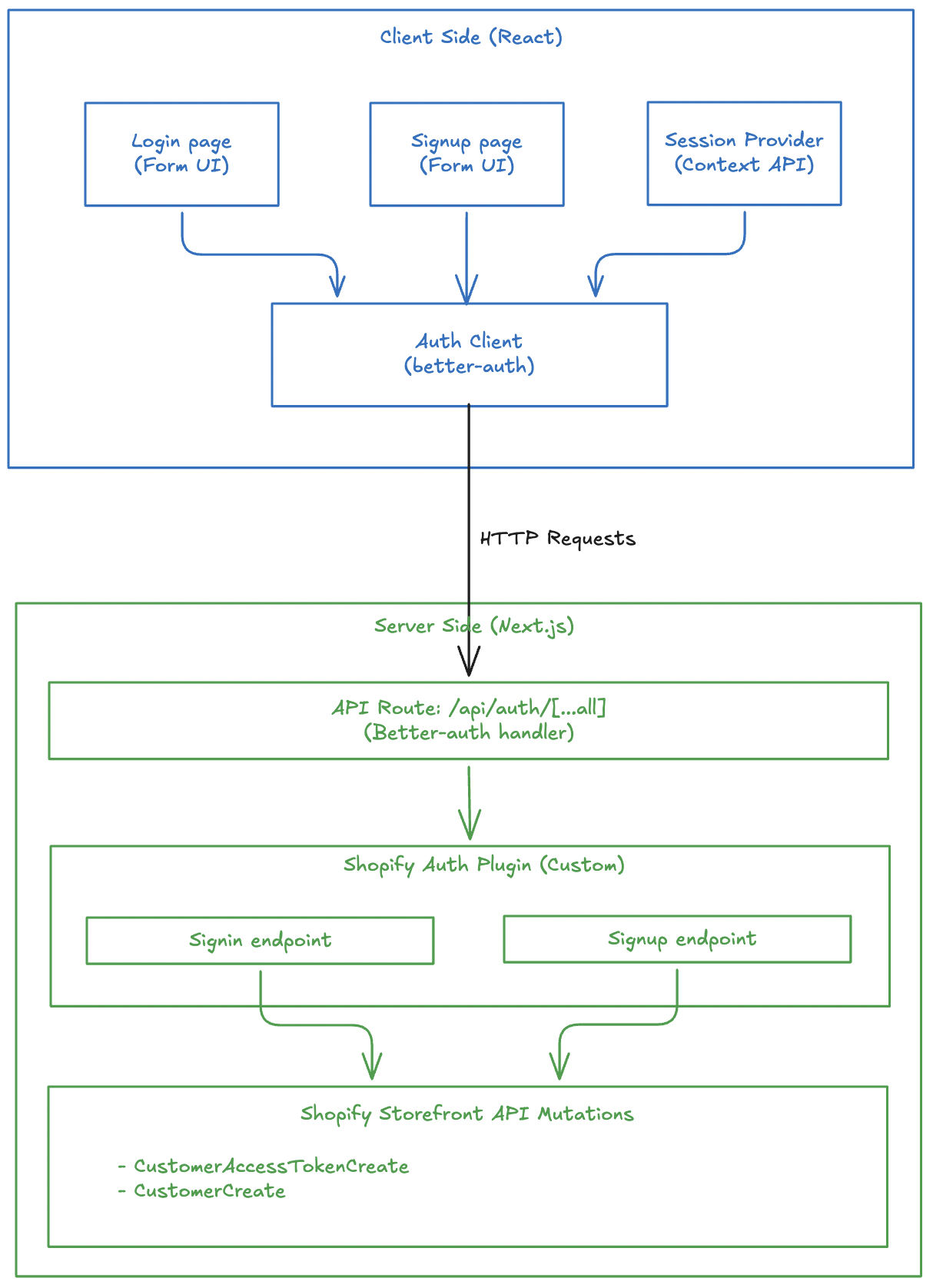
Architecture Overview

Our authentication implementation consists of several key components:

Authentication Architecture

Prerequisites

Before implementing authentication with Better-Auth, ensure you have:

  1. Next.js Setup: A working Next.js application (App Router or Pages Router)
  2. Shopify Integration: Logic to execute Shopify customer mutations (customerAccessTokenCreate, customerCreate, etc.) via Shopify's Storefront API

This article focuses specifically on integrating Better-Auth with Shopify and does not cover Next.js setup or Shopify API integration basics.

Step 1: Install Better-Auth

First, install the required dependencies:

pnpm add better-auth
# or
npm install better-auth
# or
yarn add better-auth

Step 2: Configure Environment Variables

Add the required environment variable for Better-Auth:

# .env
BETTER_AUTH_SECRET=your_secret_key_here

Generate a secure secret key using:

openssl rand -base64 32

Your project might have other environment variables like Shopify Graphql endpoint, storefront access token. I am not writing everything here to stick to the auth logic.

Step 3: Create the Shopify Auth Plugin (Server)

The Shopify auth plugin is the heart of our authentication system. It creates custom endpoints that integrate with Shopify's Customer API.

Define Input Types

First, define TypeScript types for sign-in and sign-up inputs:

// src/lib/shopify-auth-plugin.ts
export type ShopifySignInInput = {
email: string;
password: string;
};

export type ShopifySignUpInput = {
email: string;
password: string;
firstName?: string;
lastName?: string;
acceptsMarketing?: boolean;
autoSignIn?: boolean;
};

You might not need this if you are not using TypeScript.

Setup Validation Schemas

Use Zod to validate incoming requests:

import * as z from "zod";

const signInSchema = z.object({
email: z.email().min(1),
password: z.string().min(1),
});

const signUpSchema = z.object({
email: z.email().min(1),
password: z.string().min(1),
firstName: z.string().min(1).optional(),
lastName: z.string().min(1).optional(),
acceptsMarketing: z.boolean().optional(),
autoSignIn: z.boolean().optional(),
});

Zod is optional. You can skip this if you are not concerned about input validation. Not a mandatory thing for better-auth.

Create the Sign-In Endpoint

The sign-in endpoint calls Shopify's customerAccessTokenCreate mutation and stores the token in an HTTP-only cookie:

import { APIError, createAuthEndpoint } from "better-auth/api";

const SHOPIFY_CUSTOMER_TOKEN_COOKIE = "shopifyCustomerAccessToken";

export const shopifyAuthPlugin = () => {
return {
id: "shopify-auth",
endpoints: {
signIn: createAuthEndpoint(
"/shopify-auth/sign-in",
{
method: "POST",
body: signInSchema,
},
async (ctx) => {
const { email, password } = ctx.body;

// Call Shopify's customer access token create mutation
const result = await customerAccessTokenCreate({ email, password });

if (!result) {
throw new APIError("BAD_REQUEST", {
message: "Shopify sign-in failed.",
});
}

// Extract token and errors from response
const payload = result.customerAccessTokenCreate;
const userErrors = payload?.customerUserErrors ?? [];
const token = payload?.customerAccessToken?.accessToken;
const expiresAt = payload?.customerAccessToken?.expiresAt;

if (userErrors.length || !token) {
throw new APIError("UNAUTHORIZED", {
message: userErrors[0]?.message || "Invalid email or password.",
});
}

// Store token in secure HTTP-only cookie
ctx.setCookie(SHOPIFY_CUSTOMER_TOKEN_COOKIE, token, {
httpOnly: true,
secure: process.env.NODE_ENV === "production",
sameSite: "lax",
path: "/",
expires: expiresAt ? new Date(expiresAt) : undefined,
});

return ctx.json({ ok: true });
},
),
// ... signUp endpoint
},
};
};

The sign-in flow:

  1. Validates email and password using Zod
  2. Calls Shopify's customerAccessTokenCreate mutation
  3. Checks for errors in the response
  4. Stores the access token in an HTTP-only cookie
  5. Returns success response

I have not given the details of customerAccessTokenCreate() function to keep this article stick to auth related logic. You can visit the Github repo of headless-shopify to get that function and see how it works.

Create the Sign-Up Endpoint

This section should go inside the endpoints object, just like signIn.

The sign-up endpoint creates a new customer in Shopify and optionally signs them in:

signUp: createAuthEndpoint(
"/shopify-auth/sign-up",
{
method: "POST",
body: signUpSchema,
},
async (ctx) => {
const { email, password, firstName, lastName, acceptsMarketing, autoSignIn } = ctx.body;

// Create customer in Shopify
const result = await customerCreate({
email,
password,
firstName,
lastName,
acceptsMarketing,
});

const payload = result.customerCreate;
const userErrors = payload?.customerUserErrors ?? [];
const customer = payload?.customer;

if (userErrors.length || !customer) {
throw new APIError("BAD_REQUEST", {
message: userErrors[0]?.message || "Unable to create customer.",
});
}

// Optionally sign in the user immediately after signup
if (autoSignIn) {
const signInResult = await customerAccessTokenCreate({ email, password });
const token = signInResult?.customerAccessTokenCreate?.customerAccessToken?.accessToken;

if (token) {
ctx.setCookie(SHOPIFY_CUSTOMER_TOKEN_COOKIE, token, {
httpOnly: true,
secure: process.env.NODE_ENV === "production",
sameSite: "lax",
path: "/",
});
}
}

return ctx.json({ ok: true, customer });
},
),

The sign-up flow:

  1. Validates all input fields using Zod
  2. Calls Shopify's customerCreate mutation
  3. Handles any errors from Shopify
  4. If autoSignIn is true, immediately signs in the user
  5. Returns success with customer data

Step 4: Configure Better-Auth Server

Create the Better-Auth server instance:

// src/lib/auth.ts
import { betterAuth } from "better-auth";
import { nextCookies } from "better-auth/next-js";
import { shopifyAuthPlugin } from "@/lib/shopify-auth-plugin";

export const auth = betterAuth({
plugins: [nextCookies(), shopifyAuthPlugin()],
});

Step 5: Create API Route Handler

Create a catch-all API route for Better-Auth:

// src/app/api/auth/[...all]/route.ts
import { auth } from "@/lib/auth";
import { toNextJsHandler } from "better-auth/next-js";

export const { GET, POST } = toNextJsHandler(auth);

This creates the following endpoints:

  • POST /api/auth/shopify-auth/sign-in - Sign in
  • POST /api/auth/shopify-auth/sign-up - Sign up

Step 6: Create Client-Side Auth Plugin

A better-auth client-side plugin consumes the APIs created by server-side plugin.

Create the client-side plugin:

// src/lib/shopify-auth-client.ts
import type { BetterAuthClientPlugin } from "better-auth/client";
import type { BetterFetchOption } from "@better-fetch/fetch";
import type {
shopifyAuthPlugin,
ShopifySignInInput,
ShopifySignUpInput,
} from "@/lib/shopify-auth-plugin";

export const shopifyAuthClientPlugin = () => {
return {
id: "shopify-auth",
$InferServerPlugin: {} as ReturnType<typeof shopifyAuthPlugin>,
getActions: ($fetch) => {
return {
shopifySignIn: async (
data: ShopifySignInInput,
fetchOptions?: BetterFetchOption,
) => {
return $fetch("/shopify-auth/sign-in", {
method: "POST",
body: data,
...fetchOptions,
});
},
shopifySignUp: async (
data: ShopifySignUpInput,
fetchOptions?: BetterFetchOption,
) => {
return $fetch("/shopify-auth/sign-up", {
method: "POST",
body: data,
...fetchOptions,
});
},
};
},
} satisfies BetterAuthClientPlugin;
};

Step 7: Initialize Auth Client

Create the auth client instance:

// src/lib/auth-client.ts
import { createAuthClient } from "better-auth/react";
import { shopifyAuthClientPlugin } from "@/lib/shopify-auth-client";

export const authClient = createAuthClient({
plugins: [shopifyAuthClientPlugin()],
});

Step 8: Create Login Page

Now let's build the login UI that uses our auth client.

Setup Component State

// src/app/account/login/page.tsx
"use client";

import React, { useState } from "react";
import { authClient } from "@/lib/auth-client";
import { useRouter } from "next/navigation";

export default function LoginPage() {
const [loading, setLoading] = useState(false);
const [error, setError] = useState<string | null>(null);
const router = useRouter();
// ... form handler
}

Handle Form Submission

The form handler calls the shopifySignIn method from our auth client:

async function onSubmit(e: React.FormEvent<HTMLFormElement>) {
e.preventDefault();
setError(null);
setLoading(true);

const form = e.currentTarget;
const email = (form.elements.namedItem("email") as HTMLInputElement).value;
const password = (form.elements.namedItem("password") as HTMLInputElement)
.value;

try {
const shopifyAuth = await authClient.shopifySignIn({
email,
password,
});

// Check for errors in the response
const shopifyError = (shopifyAuth as { error?: { message?: string } })
?.error?.message;
if (shopifyError) {
setError(shopifyError || "Invalid email or password.");
return;
}

// Verify successful sign-in
const shopifyData = (shopifyAuth as { data?: { ok?: boolean } })?.data;
if (!shopifyData?.ok) {
setError("Invalid email or password.");
return;
}

// Redirect to account page on success
router.push("/account");
} catch (err) {
setError("An error occurred. Please try again.");
} finally {
setLoading(false);
}
}

Render the Form

Create a simple, accessible form:

return (
<div className="max-w-md mx-auto mt-8 p-6">
<h1 className="text-2xl font-bold mb-6">Sign In</h1>

<form onSubmit={onSubmit} className="space-y-4">
<div>
<label htmlFor="email" className="block text-sm font-medium mb-2">
Email
</label>
<input
id="email"
name="email"
type="email"
required
className="w-full px-3 py-2 border rounded-md"
/>
</div>

<div>
<label htmlFor="password" className="block text-sm font-medium mb-2">
Password
</label>
<input
id="password"
name="password"
type="password"
required
className="w-full px-3 py-2 border rounded-md"
/>
</div>

{error && <div className="text-red-600 text-sm">{error}</div>}

<button
type="submit"
disabled={loading}
className="w-full bg-blue-600 text-white py-2 rounded-md"
>
{loading ? "Signing in..." : "Sign In"}
</button>
</form>
</div>
);

Step 8b: Create Signup Page

Similarly, let's create the signup page that allows new users to create accounts.

Setup Component State

// src/app/account/register/page.tsx
"use client";

import React, { useState } from "react";
import { authClient } from "@/lib/auth-client";

export default function RegisterPage() {
const [loading, setLoading] = useState(false);
const [error, setError] = useState<string | null>(null);
// ... form handler
}

Handle Form Submission

The form handler calls shopifySignUp with the new customer information:

async function onSubmit(e: React.FormEvent<HTMLFormElement>) {
e.preventDefault();
setError(null);
setLoading(true);

const form = e.currentTarget;
const firstName = (form.elements.namedItem("firstName") as HTMLInputElement)
.value;
const lastName = (form.elements.namedItem("lastName") as HTMLInputElement)
.value;
const email = (form.elements.namedItem("email") as HTMLInputElement).value;
const password = (form.elements.namedItem("password") as HTMLInputElement)
.value;

try {
const shopifyAuth = await authClient.shopifySignUp({
email,
password,
firstName,
lastName,
acceptsMarketing: false,
autoSignIn: true, // Automatically sign in after signup
});

// Check for errors
const shopifyError = (shopifyAuth as { error?: { message?: string } })
?.error?.message;
if (shopifyError) {
setError(shopifyError || "Unable to create account.");
return;
}

// Verify success
const shopifyData = (shopifyAuth as { data?: { ok?: boolean } })?.data;
if (!shopifyData?.ok) {
setError("Unable to create account.");
return;
}

// Redirect to home page on success
window.location.href = "/";
} catch {
setError("Unable to create account. Please try again.");
} finally {
setLoading(false);
}
}

Note the autoSignIn: true option - this automatically signs in the user after successful registration, providing a seamless onboarding experience.

Render the Form

Create a registration form with fields for first name, last name, email, and password:

return (
<div className="max-w-md mx-auto mt-8 p-6">
<h1 className="text-2xl font-bold mb-6">Create Account</h1>

<form onSubmit={onSubmit} className="space-y-4">
<div>
<label htmlFor="firstName" className="block text-sm font-medium mb-2">
First Name
</label>
<input
id="firstName"
name="firstName"
type="text"
required
className="w-full px-3 py-2 border rounded-md"
/>
</div>

<div>
<label htmlFor="lastName" className="block text-sm font-medium mb-2">
Last Name
</label>
<input
id="lastName"
name="lastName"
type="text"
required
className="w-full px-3 py-2 border rounded-md"
/>
</div>

<div>
<label htmlFor="email" className="block text-sm font-medium mb-2">
Email
</label>
<input
id="email"
name="email"
type="email"
required
className="w-full px-3 py-2 border rounded-md"
/>
</div>

<div>
<label htmlFor="password" className="block text-sm font-medium mb-2">
Password
</label>
<input
id="password"
name="password"
type="password"
required
className="w-full px-3 py-2 border rounded-md"
/>
</div>

{error && <div className="text-red-600 text-sm">{error}</div>}

<button
type="submit"
disabled={loading}
className="w-full bg-blue-600 text-white py-2 rounded-md"
>
{loading ? "Creating Account..." : "Create Account"}
</button>
</form>
</div>
);

Step 9: Create Session Provider

A session provider manages user authentication state across your application using React Context.

Define Context Types

// src/providers/session-provider.tsx
"use client";

import {
createContext,
useCallback,
useContext,
useEffect,
useState,
} from "react";
import { getCurrentUser } from "@/lib/shopify/queries/customers/getCurrentUser";

type SessionUser = Awaited<ReturnType<typeof getCurrentUser>>;

type SessionContextValue = {
user: SessionUser;
loading: boolean;
error: string | null;
refresh: () => Promise<void>;
};

Create the Provider Component

const SessionContext = createContext<SessionContextValue | undefined>(
undefined,
);

export function SessionProvider({ children }: { children: React.ReactNode }) {
const [user, setUser] = useState<SessionUser>(null);
const [loading, setLoading] = useState(true);
const [error, setError] = useState<string | null>(null);

const refresh = useCallback(async () => {
try {
setLoading(true);
setError(null);
const currentUser = await getCurrentUser();
setUser(currentUser);
} catch (err) {
setError(err instanceof Error ? err.message : "Failed to load user");
setUser(null);
} finally {
setLoading(false);
}
}, []);

useEffect(() => {
refresh();
}, [refresh]);

return (
<SessionContext.Provider value={{ user, loading, error, refresh }}>
{children}
</SessionContext.Provider>
);
}

The provider automatically fetches the current user on mount and provides a refresh method to reload user data.

Create a Custom Hook

useSession() provides access to session-related data and functionality throughout your application.

export function useSession() {
const context = useContext(SessionContext);
if (context === undefined) {
throw new Error("useSession must be used within a SessionProvider");
}
return context;
}

Step 10: Use Session in Your App

Wrap Your App

Add the SessionProvider to your root layout:

// src/app/layout.tsx
import { SessionProvider } from "@/providers/session-provider";

export default function RootLayout({
children,
}: {
children: React.ReactNode;
}) {
return (
<html lang="en">
<body>
<SessionProvider>{children}</SessionProvider>
</body>
</html>
);
}

Access User Data

Use the useSession hook in any component to access authentication state:

"use client";

import { useSession } from "@/providers/session-provider";

export function UserProfile() {
const { user, loading, error } = useSession();

if (loading) return <div>Loading...</div>;
if (error) return <div>Error: {error}</div>;
if (!user) return <div>Not logged in</div>;

return (
<div>
<h2>Welcome, {user.firstName}!</h2>
<p>Email: {user.email}</p>
</div>
);
}

The session hook provides:

  • user - Current user data or null
  • loading - Boolean indicating if user data is being fetched
  • error - Error message if fetching failed
  • refresh() - Function to manually reload user data

Key Security Features

1. HTTP-Only Cookies

The access token is stored in an HTTP-only cookie, making it inaccessible to JavaScript:

ctx.setCookie(SHOPIFY_CUSTOMER_TOKEN_COOKIE, token, {
httpOnly: true, // Prevents XSS attacks
secure: process.env.NODE_ENV === "production", // HTTPS only in production
sameSite: "lax", // CSRF protection
path: "/",
expires: expiresAt ? new Date(expiresAt) : undefined,
});

2. Input Validation

All inputs are validated using Zod schemas before processing:

const signInSchema = z.object({
email: z.email().min(1),
password: z.string().min(1),
});

3. Error Handling

Proper error handling prevents information leakage:

if (userErrors.length || !token) {
throw new APIError("UNAUTHORIZED", {
message: userErrors[0]?.message || "Invalid email or password.",
});
}

Benefits of This Approach

  1. Type Safety: Full TypeScript support throughout the authentication flow
  2. Security: HTTP-only cookies and secure token management
  3. Extensibility: Plugin-based architecture makes it easy to add features
  4. Developer Experience: Clean API with minimal boilerplate
  5. Integration: Seamless integration with Shopify's Customer API
  6. Session Management: Built-in session handling with React Context

Conclusion

Implementing authentication in a headless Shopify storefront using Better-Auth provides a secure, type-safe, and developer-friendly solution. The plugin-based architecture allows you to create custom authentication flows that integrate perfectly with Shopify's Customer API while maintaining security best practices.

The complete implementation includes:

  • ✅ Custom Better-Auth plugin for Shopify
  • ✅ Secure cookie-based session management
  • ✅ Sign-in and sign-up functionality
  • ✅ Client-side session provider
  • ✅ Type-safe authentication flows
  • ✅ Error handling and validation

You can find the complete implementation in the Headless Shopify repository.

Resources